
Microsoft Threat Intelligence Python Security Tools.
msticpy is a library for InfoSec investigation and hunting in Jupyter Notebooks. It includes functionality to:
- query log data from multiple sources
- enrich the data with Threat Intelligence, geolocations and Azure resource data
- extract Indicators of Activity (IoA) from logs and unpack encoded data
- perform sophisticated analysis such as anomalous session detection and time series decomposition
- visualize data using interactive timelines, process trees and multi-dimensional Morph Charts
It also includes some time-saving notebook tools such as widgets to set query time boundaries, select and display items from lists, and configure the notebook environment.
The msticpy package was initially developed to support Jupyter Notebooks authoring for Azure Sentinel. While Azure Sentinel is still a big focus of our work, we are extending the data query/acquisition components to pull log data from other sources (currently Splunk, Microsoft Defender for Endpoint and Microsoft Graph are supported but we are actively working on support for data from other SIEM platforms). Most of the components can also be used with data from any source. Pandas DataFrames are used as the ubiquitous input and output format of almost all components. There is also a data provider to make it easy to and process data from local CSV files and pickled DataFrames.
The package addresses three central needs for security investigators and hunters:
- Acquiring and enriching data
- Analyzing data
- Visualizing data
We welcome feedback, bug reports, suggestions for new features and contributions.
Installing
For core install:
pip install msticpy
If you are using MSTICPy with Azure Sentinel you should install with the "azsentinel" extra package:
pip install msticpy[azsentinel]
or for the latest dev build
pip install git+https://github.com/microsoft/msticpy
Documentation
Full documentation is at ReadTheDocs
Sample notebooks for many of the modules are in the docs/notebooks folder and accompanying notebooks.
You can also browse through the sample notebooks referenced at the end of this document to see some of the functionality used in context. You can play with some of the package functions in this interactive demo on mybinder.org.
QueryProvider is an extensible query library targeting Azure Sentinel/Log Analytics, Splunk, OData and other log data sources. It also has special support for Mordor data sets and using local data.
Built-in parameterized queries allow complex queries to be run from a single function call. Add your own queries using a simple YAML schema.
Data Enrichment
Threat Intelligence providers
The TILookup class can lookup IoCs across multiple TI providers. built-in providers include AlienVault OTX, IBM XForce, VirusTotal and Azure Sentinel.
The input can be a single IoC observable or a pandas DataFrame containing multiple observables. Depending on the provider, you may require an account and an API key. Some providers also enforce throttling (especially for free tiers), which might affect performing bulk lookups.
TIProviders and TILookup Usage Notebook
GeoLocation Data
The GeoIP lookup classes allow you to match the geo-locations of IP addresses using either:
- GeoLiteLookup - Maxmind Geolite (see https://www.maxmind.com)
- IPStackLookup - IPStack (see https://ipstack.com)
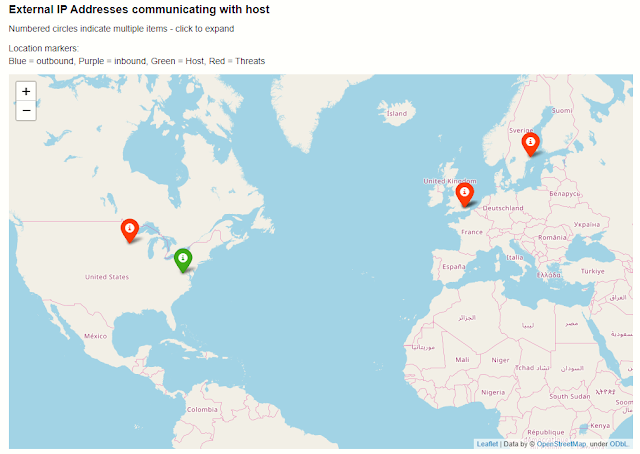
GeoIP Lookup and GeoIP Notebook
Azure Resource Data, Storage and Azure Sentinel API
The AzureData module contains functionality for enriching data regarding Azure host details with additional host details exposed via the Azure API. The AzureSentinel module allows you to query incidents, retrieve detector and hunting queries. AzureBlogStorage lets you read and write data from blob storage.
Azure Resource APIs, Azure Sentinel APIs, Azure Storage
Security Analysis
This subpackage contains several modules helpful for working on security investigations and hunting:
Anomalous Sequence Detection
Detect unusual sequences of events in your Office, Active Directory or other log data. You can extract sessions (e.g. activity initiated by the same account) and identify and visualize unusual sequences of activity. For example, detecting an attacker setting a mail forwarding rule on someone's mailbox.
Anomalous Sessions and Anomalous Sequence Notebook
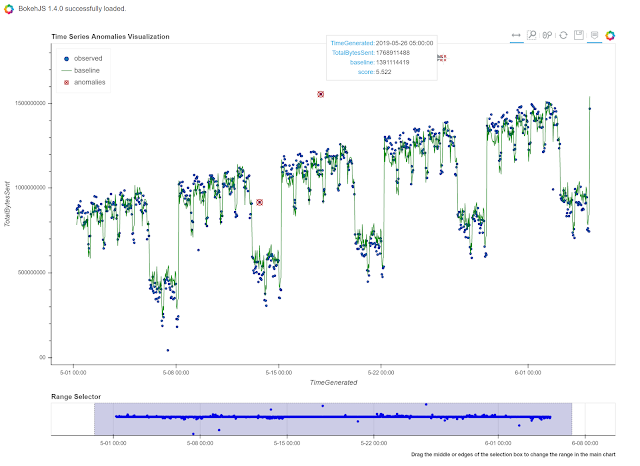
Time Series Analysis
Time series analysis allows you to identify unusual patterns in your log data taking into account normal seasonal variations (e.g. the regular ebb and flow of events over hours of the day, days of the week, etc.). Using both analysis and visualization highlights unusual traffic flows or event activity for any data set.
Visualization
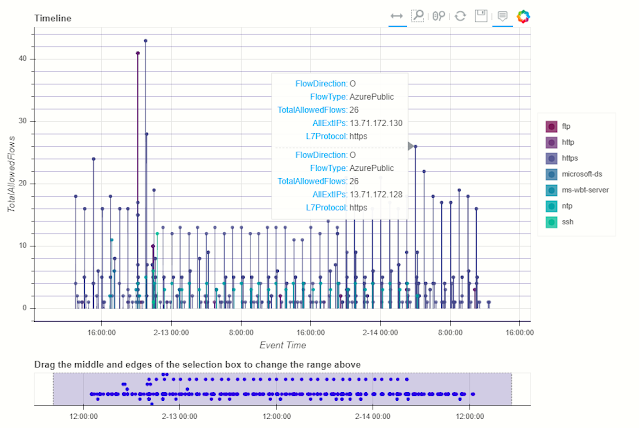
Event Timelines
Display any log events on an interactive timeline. Using the Bokeh Visualization Library the timeline control enables you to visualize one or more event streams, interactively zoom into specific time slots and view event details for plotted events.
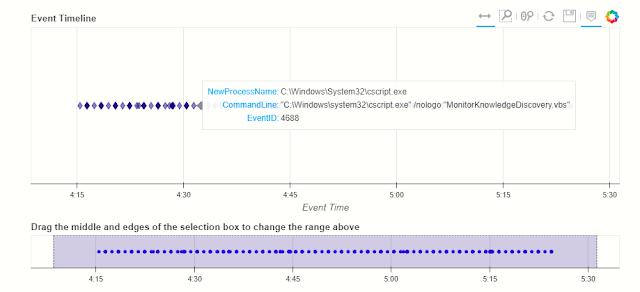
Timeline and Timeline Notebook
Process Trees
The process tree functionality has two main components:
- Process Tree creation - taking a process creation log from a host and building the parent-child relationships between processes in the data set.
- Process Tree visualization - this takes the processed output displays an interactive process tree using Bokeh plots.
There are a set of utility functions to extract individual and partial trees from the processed data set.
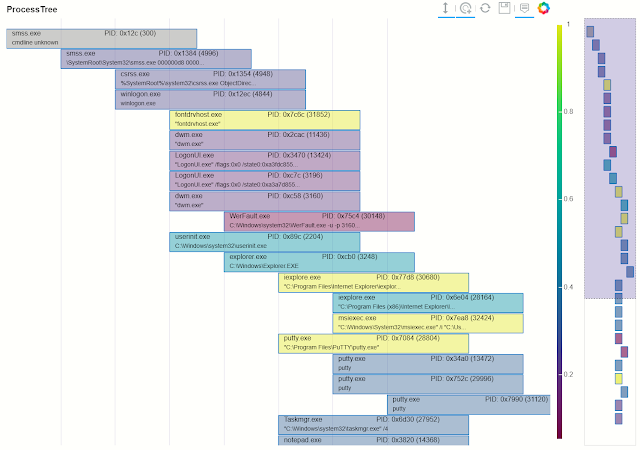
Process Tree and Process Tree Notebook
Data Manipulation and Utility functions
Pivot Functions
Lets you use MSTICPy functionality in an "entity-centric" way. All functions, queries and lookups that relate to a particular entity type (e.g. Host, IpAddress, Url) are collected together as methods of that entity class. So, if you want to do things with an IP address, just load the IpAddress entity and browse its methods.
Pivot Functions and Pivot Functions Notebook
base64unpack
Base64 and archive (gz, zip, tar) extractor. It will try to identify any base64 encoded strings and try decode them. If the result looks like one of the supported archive types it will unpack the contents. The results of each decode/unpack are rechecked for further base64 content and up to a specified depth.
Base64 Decoding and Base64Unpack Notebook
iocextract
Uses regular expressions to look for Indicator of Compromise (IoC) patterns - IP Addresses, URLs, DNS domains, Hashes, file paths. Input can be a single string or a pandas dataframe.
IoC Extraction and IoCExtract Notebook
eventcluster (experimental)
This module is intended to be used to summarize large numbers of events into clusters of different patterns. High volume repeating events can often make it difficult to see unique and interesting items.
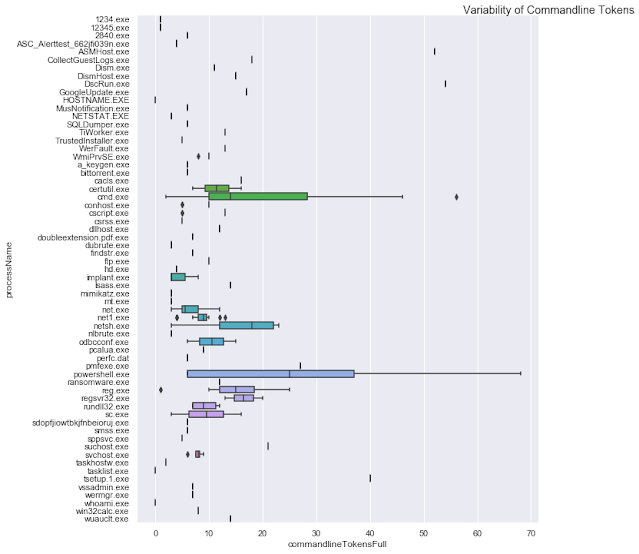
This is an unsupervised learning module implemented using SciKit Learn DBScan.
Event Clustering and Event Clustering Notebook
auditdextract
Module to load and decode Linux audit logs. It collapses messages sharing the same message ID into single events, decodes hex-encoded data fields and performs some event-specific formatting and normalization (e.g. for process start events it will re-assemble the process command line arguments into a single string).
syslog_utils
Module to support an investigation of a Linux host with only syslog logging enabled. This includes functions for collating host data, clustering logon events and detecting user sessions containing suspicious activity.
cmd_line
A module to support he detection of known malicious command line activity or suspicious patterns of command line activity.
domain_utils
A module to support investigation of domain names and URLs with functions to validate a domain name and screenshot a URL.
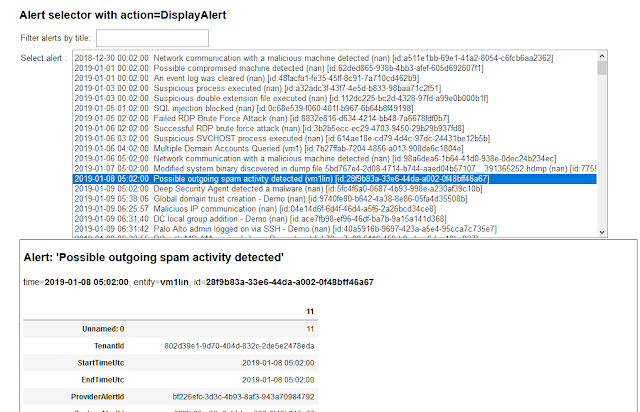
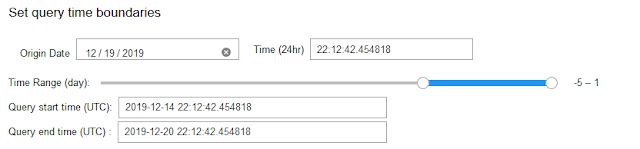
Notebook widgets
These are built from the Jupyter ipywidgets collection and group common functionality useful in InfoSec tasks such as list pickers, query time boundary settings and event display into an easy-to-use format.
Example notebooks:
View directly on GitHub or copy and paste the link into nbviewer.org
Notebook examples with saved data
See the following notebooks for more examples of the use of this package in practice:
- Windows Alert Investigation in GitHub or NbViewer
- Office 365 Exploration in GitHub or NbViewer
- Cross-Network Hunting in GitHubor NbViewer
Supported Platforms and Packages
- msticpy is OS-independent
- Requires Python 3.6 or later
- See requirements.txt for more details and version requirements.
Contributing
For (brief) developer guidelines, see this wiki article Contributor Guidelines
This project welcomes contributions and suggestions. Most contributions require you to agree to a Contributor License Agreement (CLA) declaring that you have the right to, and actually do, grant us the rights to use your contribution. For details, visit https://cla.microsoft.com.
When you submit a pull request, a CLA-bot will automatically determine whether you need to provide a CLA and decorate the PR appropriately (e.g., label, comment). Simply follow the instructions provided by the bot. You will only need to do this once across all repos using our CLA.
Read more
- Hack Tools
- Pentest Tools Subdomain
- Hacker Tools Apk
- Hacker Tools Free Download
- Pentest Tools For Mac
- Pentest Recon Tools
- Hacking Tools Windows
- Tools For Hacker
- World No 1 Hacker Software
- Pentest Tools Port Scanner
- Github Hacking Tools
- New Hacker Tools
- Pentest Tools Subdomain
- Pentest Tools Url Fuzzer
- Hak5 Tools
- Pentest Reporting Tools
- Pentest Tools Find Subdomains
- Hacking Tools Software
- Hack Tools For Mac
- Hackers Toolbox
- Hacking Tools Kit
- Pentest Tools For Mac
- Hacking Tools Github
- Hack Tools For Windows
- Hacking Tools
- Pentest Tools Windows
- Kik Hack Tools
- Hacking Tools For Kali Linux
- Hacker Tools Hardware
- Hacker
- Hacking Tools For Windows Free Download
- Hack Tool Apk
- Hacker Techniques Tools And Incident Handling
- Hacker Tools Free Download
- Black Hat Hacker Tools
- Tools 4 Hack
- Hacking Tools Windows 10
- Nsa Hack Tools
- Hack Tool Apk No Root
- Hack Tools
- Pentest Tools Android
- Hacking App
- Pentest Tools For Windows
- Hack Tools Download
- Hacking Tools Pc
- Pentest Tools For Ubuntu
- Hack Tool Apk
- Hacker Techniques Tools And Incident Handling
- Hack Tools
- Pentest Tools Url Fuzzer
- Ethical Hacker Tools
- Pentest Tools Nmap
- Hackers Toolbox
- Pentest Tools Free
- Hack Tool Apk
- Pentest Tools For Mac
- Pentest Tools List
- Best Hacking Tools 2020
- Pentest Tools Bluekeep
- Hacker Tools Apk
- Pentest Tools Tcp Port Scanner
- Hacking Tools Pc
- Android Hack Tools Github
- Hacker Tools List
- Easy Hack Tools
- Hacking Tools For Games
- Android Hack Tools Github
- Nsa Hack Tools
- Pentest Recon Tools
- Ethical Hacker Tools
- Android Hack Tools Github
- Hacking App
- Tools Used For Hacking
- Hacking Tools
- Pentest Reporting Tools
- Best Hacking Tools 2020
- Hack Tools
- Hack Tool Apk No Root
- Pentest Tools Framework
- Hacker Tools Linux
- Blackhat Hacker Tools
- Hack Apps
- Hacking Apps
- Pentest Reporting Tools
- Hacking Tools 2020
- Hacking Tools Download
- Hack Tools For Games
- Top Pentest Tools
- Hacking Tools
- Hack Tool Apk
- Pentest Tools Tcp Port Scanner
- Hacking Tools For Kali Linux


